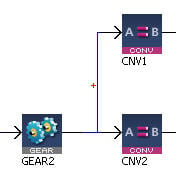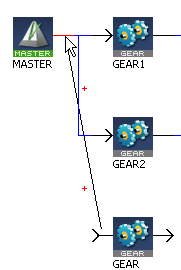
Connections are simply inserted by clicking on an adequateAs explained below, an adequate point depends on the type of the connection point and dragging the mouse to another adequate point. For more details, refer to Adding Motion.
Two kinds of connection can be inserted.
Connections are drawn between an input and an output port of two different Pipe Blocks. Connections can be drawn from input to output ports or vice-versa.
Figure 10-2: Pipe Network - Create a Link
When you try to connect two Pipe Blocks, the editor highlights the target port in red when the connection is allowed.
Connections are drawn between the text area of the comment (title bar is reserved for moving the comment) and the Pipe Block icon.
The connection cannot be drawn from the Pipe Block to the comment.
Allowed target is not highlighted.
|
Stay Connected with Kollmorgen       
|
Copyright © 2015 Kollmorgen™ |

|
 Relation type for output-input is 1-n